Windows 8 has spurred a lot of unusual hardware designs, but few are as
intriguing as the tabletop tablet. Imagine a full-fledged all-in-one PC
that lies flat on whatever surface you have handy. It's a design that
offers all the screen real estate and CPU performance of a touchscreen
all-in-one, along with the portability of a battery-operated tablet.
With display sizes ranging from 18.4 inches to 27 inches, the new
hybrids are ostensibly perfect for modernizing "family game night." And,
indeed, these machines are bundled with touchscreen versions of board
games, air hockey, poker, and other digital diversions. If you use these
PCs as their manufacturers intended, your hybrid machine will be a
family-room desktop computer by day and a living-room gaming platform by
night.
But is this an experience that consumers want or even need? Asus, Dell,
Lenovo, and Sony sure hope so. Each computer maker took an independent
path toward the invention of this novel form factor, though the
companies were certainly compelled by a single market force: Traditional PC sales are falling off a cliff. HP plans to get into the game, too, but its Envy Rove won’t ship until July.
As with any experiment in crossbreeding, the goal is to generate a new
life form that's superior to its parents. Is that what happened here?
Yes and no.
None of these machines pose a threat to Apple’s iPad
or any small tablet running Android or Windows 8. After all, these
monsters are too big to fit in a backpack or messenger bag. And three of
the four lack a key feature common to the best all-in-ones: an HDMI
input, which allows you to plug in a gaming console or set-top box and
use just the display. Finally, none of these computers provide enough
GPU horsepower to fully support graphically intense games such as
BioShock Infinite or the latest Call of Duty installments.
LenovoThanks to their massive touchscreens, you can operate these giant hybrids flat on a table or propped up in your lap.
That said, the new tabletop tablets deliver all the key features we've
come to expect from all-in-one PCs, including the ability to run all the
same software, and to connect to printers and other peripherals. And by
virtue of their large displays, the new hybrids deliver better Web
browsing and media streaming than any tablet I’ve used. Finally, while
action games may not make sense for this new kind of system, these
machines could reinvent multiplayer gaming, with multiple people
gathering around a single, giant tablet to play electronic versions of
Monopoly or Risk.
Could this new form factor save the desktop-PC industry? “Portable
all-in-ones alone won't help revitalize the PC market,” says Patrick
Moorhead, founder and principal analyst at Moor Insight and Strategy.
"But combined with hybrids, convertibles, and thin notebooks, they will
have a positive impact. Ironically, success comes down, in part, to a
successful reception of Windows 8, which currently lacks enough apps to
inspire some buyers."
Some of these all-in-one/tablet hybrids are better than others, but all
of them are interesting. And whatever you think of Windows 8, you can
thank Microsoft’s maligned OS for their existence. Read on to discover
how well each company executed on the promise of marrying the all-in-one
desktop PC to the portable Windows 8 tablet.
Asus Transformer All-in-One P1801
While Dell, Lenovo, and Sony adopted the same essential design for their
respective all-in-ones, Asus—in typically inconoclastic Asus
fashion—took a completely different approach. In fact, a better
description of Asus's machine might be “all-in-two,” because the Transformer All-in-One P1801 is essentially two discrete computers, each with its own CPU and operating system.
The Transformer P1801’s base houses one computer powered by a quad-core
3.1GHz Intel Core i5-3450 CPU and 8GB of DDR3/1600 memory. When the
18.4-inch, ten-point-touch display is docked to the base, the
combination functions as a conventional desktop all-in-one. Remove the
display from the dock, and it becomes a giant tablet running Android 4.1
(Jelly Bean). The display provides a native resolution of 1920 by 1080
pixels.
AsusAsus took the most daring design route, but its remote-desktop mode is problematic.
The base unit is a well-equipped computer all its own. In addition to
the quad-core CPU, it has a discrete graphics processor (Nvidia’s GT
730M, with its own 2GB frame buffer), a 1TB 7200-rpm hard drive, wired
and wireless network adapters (gigabit ethernet and 802.11n), a DVD
burner, four USB 3.0 ports, one USB 2.0 port (occupied by the
transceiver for the wireless mouse and keyboard), and a memory card
reader.
The base also has built-in speakers, mic and headphone jacks, and an
HDMI output so it can connect to an external monitor. With a second
monitor attached to the system, one person can use the base station as a
regular Windows 8 computer while someone else uses the display as an
Android tablet.
ROBERT CARDINThe
Windows computer is in the Transformer P1801's base, and can run
independently of the Android computer in its detachable display.
That’s because the tablet has its own quad-core microprocessor—an Nvidia
Tegra 3—with 32GB of flash memory. You can access the storage in both
the tablet and the base station while you're using the system in Windows
mode, but the Android side can see only the tablet storage. The tablet
has its own 802.11n Wi-Fi network adapter, so you can surf the Web as
well as download, install, and use Android apps and games. While the
display is docked and the Transformer P1801 is operating in Windows
mode, you can initiate a download and undock the display, and the
download will continue uninterrupted.
The display has its own stereo speakers, a mic/headphone combo jack, one
USB 2.0 port, and a memory card reader, but its 1-megapixel webcam
operates only while it’s in PC mode. The display’s built-in handle makes
it easy to carry, and its fold-out stand lets you use it on a table or
desktop (reclining at up to a 100-degree angle). The Transformer P1801’s
display is only slightly heavier than that of Dell’s XPS 18 Touch,
weighing 5.29 pounds.
In addition, the Transformer P1801 has a third mode that renders it
truly unique in this group: It can switch between running as an Android
tablet and as a remote Windows 8 desktop. This flexibility means you can
remove the display from its base and take it into another room, where
it will function as a wireless touchscreen for the Windows 8 session
running on the docking station. You have limited range in this mode,
however, and response time can be laggy. Most people will find having a
truly portable Windows computer to be a better value.
The Dell XPS 18 Touch scored better on our WorldBench 8.1 Desktop
benchmark suite—earning a mark of 171 to the Transformer P1801’s 153—but
we can attribute that difference primarily to the presence of the SSD
cache drive on Dell’s machine. The Transformer P1801 performed better
with games and productivity apps. The Asus model delivers a better
price/performance ratio too, especially when you consider that you can
use its base unit as a PC (provided that you connect another display)
while someone else uses its display as an Android tablet. But the Dell
unit has more sex appeal.
Asus Transformer P1801 Pros:
Two computers in one
Desktop Core i7 CPU in the base unit
1TB, 7200 rpm hard drive
Cons:
Mode switching can be clumsy
Webcam not functional in Android mode
No HDMI input on either the base or the display
Bottom line:
The Transformer All-in-One is a world apart from the other portable
all-in-ones we’ve seen, but it’s not as sexy as Dell’s XPS 18 Touch.
Rating: 3.5 stars
Dell XPS 18 Touch
The XPS 18 Touch
is one of the best tablet/all-in-one hybrids I’ve seen, but I hope Dell
introduces a second, larger model. While an 18.4-inch touchscreen is
ginormous for a portable computer, it’s just a little small for a
desktop machine.
The screen boasts a high resolution of 1920 by 1080 pixels, however, and
photos, movies, and websites look great on it. And since the device is
outfitted with an Intel Centrino Wireless-N 2230 Wi-Fi adapter, you can
stream its video output to a big-screen TV with a built-in Wi-Di adapter
or to a box (such as Netgear’s NeoTV)
that can connect to any TV. The XPS 18 Touch provided very good battery
life of 4 hours while streaming HD video in our tests, so it should
last much longer if you’re just surfing the Web.
ROBERT CARDINDon't buy a Dell XPS 18 Touch without its excellent stand.
Because the system relies on the graphics processor integrated into the
CPU—a low-power 1.8GHz Intel Core i5-3427U with hyperthreading
support—you shouldn’t expect to play hard-core games on it. While it did
manage to run Dirt Showdown at the display’s native resolution at a
rate of 44.9 frames per second, it turned Crysis 3 into a slideshow,
with a frame rate of just 1.5 fps. Its all-around performance was much
better, achieving a WorldBench 8.1 Desktop score of 171 (compared to our
reference all-in-one system, an Acer Aspire U A5600U-UB13, which scored
100).
The XPS 18 Touch has 8GB of DDR3/1600 memory. And unlike your typical
tablet, this device comes with a 500GB hard drive (supplemented by a
32GB SSD acting as cache), plus a Bluetooth keyboard and mouse. The
tablet has a media card reader, two USB 3.0 ports, and a combo
headphone/microphone jack. A 720p webcam is built into the top bezel,
alongside a dual-mic array for Skype videoconferencing.
Measuring only 0.7 inch thick and weighing less than 5 pounds, the XPS
18 Touch is easy even for small children to carry. Two plastic feet flip
out of the back for use as a conventional all-in-one on a desk or
tabletop with the mouse and keyboard. Alternatively, you can lay it
almost flat (completely flat if you fold the feet in) or prop it up in
your lap and use the touchscreen.
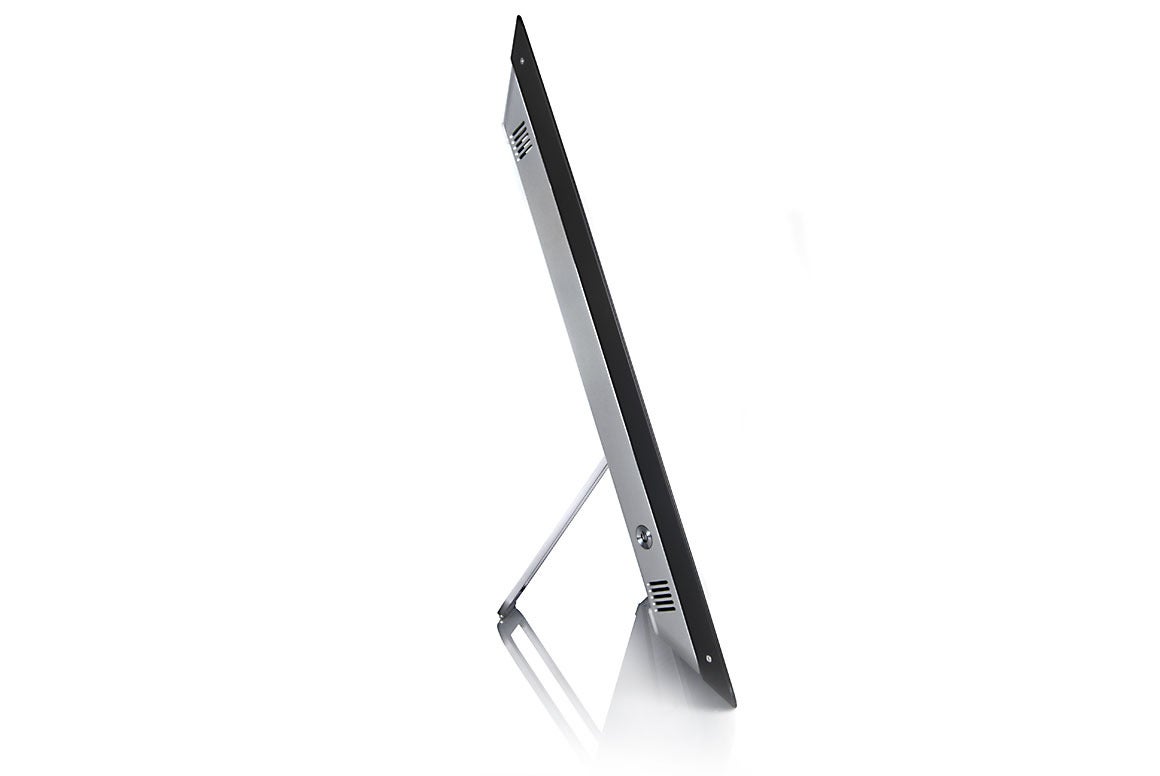
ROBERT CARDINThe Dell XPS 18 Touch is amazingly thin and light.
Dell bundles two games that take advantage of the touchscreen display
when it’s lying flat: the music game Fingertapps Instruments and an
air-hockey simulator. Games and programs that rely on finger taps, such
as pinball simulators and the aforementioned music game, offer the best
experience with touchscreens. While playing the air hockey game, I noted
considerable lag between the time I slid my finger across the screen
and the graphically rendered puck responded.
Dell also provides a sturdy stand (an optional accessory on the
less-expensive models) that will charge the tablet’s battery on contact.
But the stand doesn’t provide much in the way of guidance as you lower
the display into it. A Dell spokesperson said this was an intentional
design decision, so that children wouldn’t need to place the display in
precisely the right spot, but the tablet won’t charge if they don’t.
(Personally, I wouldn’t want small children toting an 18-inch tablet
around the house in the first place. But that’s just me.)
The XPS 18 Touch’s smaller dimensions render it much more transportable
than my other favorite monster tablet, the Lenovo IdeaCentre Horizon,
and its ultrathin profile and low weight beat the tar out of the Asus
Transformer All-in-One P1801 and the Sony Tap 20. I like it a lot.
Dell XPS 18 Pros:
Very thin and very light
Supports Intel's Wireless Display technology
32GB SSD for fast boot times
Cons:
No discrete GPU
5400 rpm hard drive
Plastic feet feel flimsy
Bottom line:
It's great to see such a solid execution of a new form factor this early
in the game. The XPS 18 Touch would be even more exciting if Dell took a
page out of Asus' playbook and added a more functional dock.
Rating: 4 stars
Lenovo IdeaCentre Horizon
Lenovo’s IdeaCentre Horizon is the boldest expression of the portable
all-in-one concept to reach the market. Asus, Dell, and Sony have giant
tablets. Lenovo has a computer the size of a tabletop—its display
measures a full 27 inches. In fact, the company showed us the prototype
of a cool rolling stand for the Horizon earlier this year, but it’s not
yet available for sale.
Lenovo does bundle several other accessories for playing games on the
Horizon, including four joysticks, four strikers (for playing air
hockey), and one example of “e-dice” (a wireless die that informs the
computer which number is face up after a roll). The Horizon comes with a
variety of games that take advantage of its tablelike design, including
Monopoly, air hockey, and roulette.
LenovoThe
Lenovo IdeaCentre Horizon's massive 27-inch screen is its biggest
selling point, but that feature also makes this computer exceedingly
heavy.
The large display renders the Horizon the best all-in-one PC in this
group, as well as the best casual gaming platform, but it has one
drawback: Its resolution is limited to 1920 by 1080 pixels. If you’re a
stickler for detail when it comes to precision tasks such as photo
editing, you probably won’t like seeing the pixels spread so far apart.
But that’s not the type of application Lenovo’s engineers had in mind
when they designed this machine.
The other drawback to the Horizon’s massive screen is its considerable
bulk: This monster tips the scales at 18.95 pounds. On the positive side
of the ledger, it has a discrete graphics processor, an Nvidia GeForce
GT 620M with a 2GB frame buffer. The balance of the Horizon’s spec sheet
is equally tasty. You'll find a low-power 2GHz Core i7-3537U, 8GB of
DDR3/1600 memory, and a 1TB hard drive (unfortunately, it’s a 5400-rpm
model).
ROBERT CARDINLenovo was the only manufacturer that thought to include an HDMI input on its tablet.
The slow hard drive significantly depressed the Horizon’s WorldBench 8.1
Desktop score, lowering it to 111. But the fast CPU and the discrete
GPU gave this machine first-place finishes on the image-editing, audio-
and video-encoding, and file-compression tests that also make up our
benchmarking suite. Battery life was surprisingly good: The IdeaCentre
Horizon was able to play an HD video for 3 hours, 28 minutes.
The IdeaCentre Horizon is the only portable all-in-one in this roundup
to include an HDMI input. It’s puzzling that no other manufacturer
thought to include this feature. The all-in-one PC in my kitchen is
connected to a satellite set-top box, and it serves as a TV almost as
much as it acts as a computer, so I don’t know if I’d buy one that
lacked that simple feature. The rest of the Horizon’s features include a
720p webcam, a media card reader, an 802.11n Wi-Fi adapter, and a
wireless mouse and keyboard.
The Horizon’s humongous screen, fast CPU, discrete graphics processor,
and fun accessories drive its price tag up to $1849. That’s higher than
the rest of the machines in this roundup, and it’s several hundred
dollars more than Lenovo’s conventional 27-inch all-in-one (the IdeaCentre A720
goes for $1559). Dell’s XPS 18 Touch makes a better giant tablet, but
Lenovo’s IdeaCentre Horizon is the superior family-gaming platform.
Pros:
27-inch display
Fast CPU and a discrete GPU
HDMI input
Fun gaming accessories
Cons:
1920-by-1080 resolution (on a 27-inch display)
Very heavy
Expensive
Bottom line:
The Horizons's size makes games and everything else more enjoyable, even
though it also makes it more difficult to move around the house.
Rating: 4 stars
Sony VAIO Tap 20
Sony deserves credit for establishing the portable all-in-one market,
having introduced the VAIO Tap 20 last winter. This model boasts a Core
i7 CPU, 8GB of memory, and a 20-inch ten-point touchscreen for just
$1100. On the downside, its display resolution is disappointingly
limited to 1600 by 900 pixels.
SonySony's Tap 20 is the oldest model we looked at in this group, but it's a good buy at $1100.
The Tap 20 also relies on the GPU integrated into its mobile 2GHz Intel
Core i7-3517U processor to drive that display, and its 750GB hard drive
spins its platters at only 5400 rpm. The Tap 20’s fast CPU helped it
deliver good performances on the content-creation elements of our
benchmarking suite (image editing and audio- and video-encoding tasks),
but the absence of a discrete GPU generated a goose egg in our
GPU-accelerated image-editing test. In the end, the Tap 20 earned a
WorldBench 8.1 Desktop score of 95 (our reference all-in-one, Acer’s
Aspire U A5600U-UB13, scored 100).
I found the Tap 20 only slightly less difficult to carry from room to
room than the 27-inch Lenovo Horizon. Sony suggests using the kickstand
as a handle, but to do so you must tilt the computer forward, grab the
bottom of the kickstand, and rotate the entire machine upside down. The
computer is then difficult to set up at a new location because your most
natural movement is to first set it face down on the desk or
tabletop—not a good idea.
ROBERT CARDINThe Tap 20 is thick and much too heavy for its size.
Moving the Tap 20 from room to room is an even more awkward task due to
its 11-plus-pound bulk—this computer is almost twice as thick as Dell’s
XPS 18 Touch. I was also surprised by the Tap 20’s relatively poor
battery life: It played our HD video for just 2 hours, 21 minutes before
it pooped out.
When Loyd Case reviewed the VAIO Tap 20 back in October 2012,
nothing comparable was on the market. So even though the model he
tested had a Core i5-3317U processor and only 4GB of memory, he awarded
four stars to the new and innovative (for its time) concept. The
competition has responded aggressively since then, and the Tap 20 has
lost some of its luster. Fortunately, Sony has adjusted its pricing
accordingly, and the current street price of $1100 renders this machine a
good value.
Pros:
Intel Core i7 CPU
1TB hard drive
Sony's Bravia video technology
Cons:
Thick and heavy for its size
Short battery life
5400 rpm hard drive
Bottom line:
Sony essentially created this market, which means the Tap 20 has been
around for a while. This computer is thicker and heavier than it should
be, but Sony has priced it aggressively.
Rating: 3 stars
Slightly less than a year ago, Microsoft began outlining its plans to overhaul Office documents with live data, culled from the Web. On Monday, Microsoft made those plans reality, shipping PowerBI for Office 365.
PowerBI, as its name suggests, is designed to facilitate “business
intelligence” by taking professional data analysis and making it more of
a self-serve option. Its most intriguing selling point is a natural
language engine, dubbed “Q&A,” which allows users to ask questions
of the data and get meaningful answers in return.
But PowerBI for Excel won’t come cheap; the option is only available under Microsoft’s Office 365 Enterprise E3 and E4 plans, and adding it will raise the price of the E3 plan from $20 per user per month to $33.
Nevertheless,
the add-on isn’t for data wonks. Although a sales manager might have
access to the quarter’s numbers, traditional “business
intelligence”—which brand of Ford has historically sold best to
30-something professionals in the Chicago metropolitan area, for
example—has traditionally been the province of companies like Oracle,
SAP, and MicroStrategy, among others. That requires mining large
databases and organizing the data in useful ways—and often presenting it
in Excel. With PowerBI, Microsoft hopes that
it can cut out the middleman. “One hundred percent of employees are
making decisions and one hundred percent could be more effective if they
had data,” said Julia White, general manager of Microsoft’s Office
division, said in an interview.
Smart data from smart sources
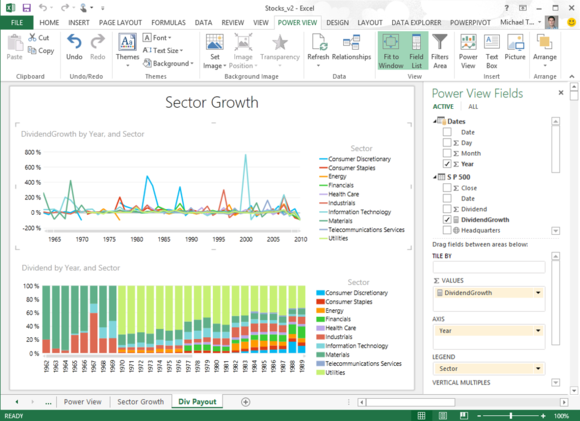
PowerBI’s Power View enables multiple charts and graphs to be displayed side by side. PowerBI hopes to hook customers in
three ways. First, the software can cull large data sources—both from
inside the company on Azure and SharePoint as well as public data like
Facebook, Wikipedia, an Odata feed and more—and pull it into the report,
automatically, by using the app to search a linked data catalog that
Microsoft compiled. Microsoft’s security model allows access to internal
data sources if an employee uses his or her credentials. That gives
reports a “live” element that helps prevent the report from becoming
almost immediately out of date. Second, in addition to the
traditional charts and graphs that accompany Excel spreadsheets, there
are tools like PowerMap (top), which can use location data and plot the
results on a Bing Map and PowerView, which can combine several charts
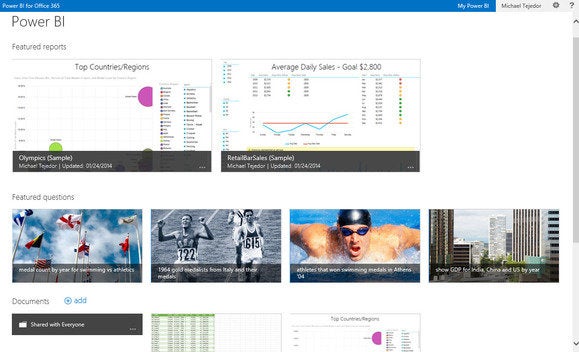
and graphs into a single view. Finally, there’s the “Q&A” tool, which allows users to use natural language queries to generate coherent results.
BI on the run
Microsoft allows users to build BI
sites—essentially examples of these living documents that live on the
Web—and access them either through the Web, or on the go using HTML5 or a
PowerBI app that Microsoft will make available on the Windows Store. Microsoft
Users can build collaborative PowerBI sites fr sharing reports and other information. And how difficult will it be for
the average user to adopt this new way of doing things? White, not
surprisingly, said it won't be too difficult. “Any one that can use a
pivot table can use this,” she said. “It’s not a real high bar.” In her own organization, White
said, what she’s seeing is that a couple of her direct reports will
prepare a BI document and pass it along. Instead of exclusively relying
on their conclusions, however, she can play with the data herself—a
“report” becomes more of a process of culling data as much as providing a
fixed set of conclusions. Microsoft said that Carnegie Mellon University, Revlon, and Trek had all trialed the technology. Tracking down and discovering a
comprehensive pool of data to provide context or back up one’s
conclusions is one thing. Organizing it in a way to facilitate further
inquiry is another. Will Microsoft be able to shoulder aside existing BI
specialists? Building the technology into Excel itself is a good start.
If you’re reading this story on a smartphone in Bangor, Maine, Key West
Florida, Spokane, Washington, or really any point in between, you
wouldn’t think that a bill making its way through the California state
legislature would have much of an impact on your mobile device. But a
new proposal for a mandatory kill-switch on mobile devices in California
figures to have ramifications felt far beyond the borders of the Golden
State should it come to pass.
The bill, introduced Friday
by State Sen. Mark Leno (D-San Francisco), would require any mobile
device sold in the state to come with a digital kill-switch that would
render the device useless if it’s ever nabbed by a thief. The idea
behind the proposed law is to put a dent in smartphone theft, which has spiked upward in recent years.
Well, good for California, then. But what’s it matter to you, if you
happen to live in one of the 49 other states in this country?
Consider it an offshoot of The Golden Rule—as in Them That’s Got the
Gold Makes the Rules. By virtue of its size—and the hefty fine for phone
makers that’s included in Leno’s proposed law—California has enough
pull to make kill switches a standard feature on mobile devices.
The bill introduced by Leno proposes fines ranging from $500 to $2500
per device for retailers who sell a device without kill-switch
technology. (Sales of second-hand phones are excluded, so don’t worry
about state troopers busting into your home should you ever try to
unload that aging iPhone on eBay.) By not complying with such a law,
device makers and retailers would either have to pay a fine for each
phone and tablet they sold or decide that they no longer care to do
business with the 38 million people who live in California. Neither
option seems like it would be particularly palatable to a business
interested in turning a profit.
Equally unpalatable would be producing a separate product available just
for California consumers. So if California moves forward with a
smartphone kill-switch mandate, devices complying with that requirement
would likely be sold in the other 49 states, whether they pass similar
laws or no.
So the big question: How likely is it that California’s legislature
moves ahead with this bill? The kill-switch proposal comes with
formidable political backing. San Francisco District Attorney George
Gascón, who’s been applying pressure on tech companies
to adopt technology that reduces the risk of phone thefts, is joining
Leno to introduce the bill. Mayors and police chiefs of San Francisco,
Los Angeles, and Oakland have also pledged their support.
Partisan gridlock is unlikely to derail the bill. Leno’s fellow
Democrats hold substantial majorities in both the State Senate and
Assembly. California’s governor is a Democrat as well.
Apple’s Activation Lock feature in iOS 7 is an example of the kind of kill-switch feature California could mandate.
The biggest opposition is likely to come from the wireless industry. The CTIA, a trade group for the phone industry, has been cool to mandate kill switches, instead promoting a nationwide database of stolen phones as a way to combat theft. (Law enforcement officials think the effectiveness of that database has its limits.) TechNet, a high-tech industry trade group, told the Los Angeles Times that it’s guarded about a government-mandated solution.
Some smartphone makers have already taken matters into their own hands: iOS 7 introduced an Activation Lock
feature to Apple’s mobile devices and Samsung installed a Lojack
feature on some of its phones, though you need to pay an annual fee to
take advantage of that capability. Should it pass, California’s proposed
law figures to be a game-changer for smartphone and tablet owners—even
those in other states.
Dell’s Inspiron 14
7000-series laptops are sexy-looking beasts boasting forged-aluminum,
beveled-edge chasses; 14-inch Gorilla Glass touchscreens; and backlit
keyboards. But the absence of an SSD (as a cache or otherwise) has a
significant impact on their performance.
These machines look like Ultrabooks, but they're not being marketed
as such. Intel controls that standard and while it doesn’t explicitly
state that a notebook must be equipped with an SSD to carry the
Ultrabook moniker, the Ultrabook definition requires a notebook to
operate in standby for at least seven days, and awake from standby with
fresh data in less than three seconds. The Inspiron 14 7000 series (I
reviewed the Model 7437) can’t do that with a mechanical hard drive, and
it can’t be configured with one at time of purchase. ROBERT CARDIN
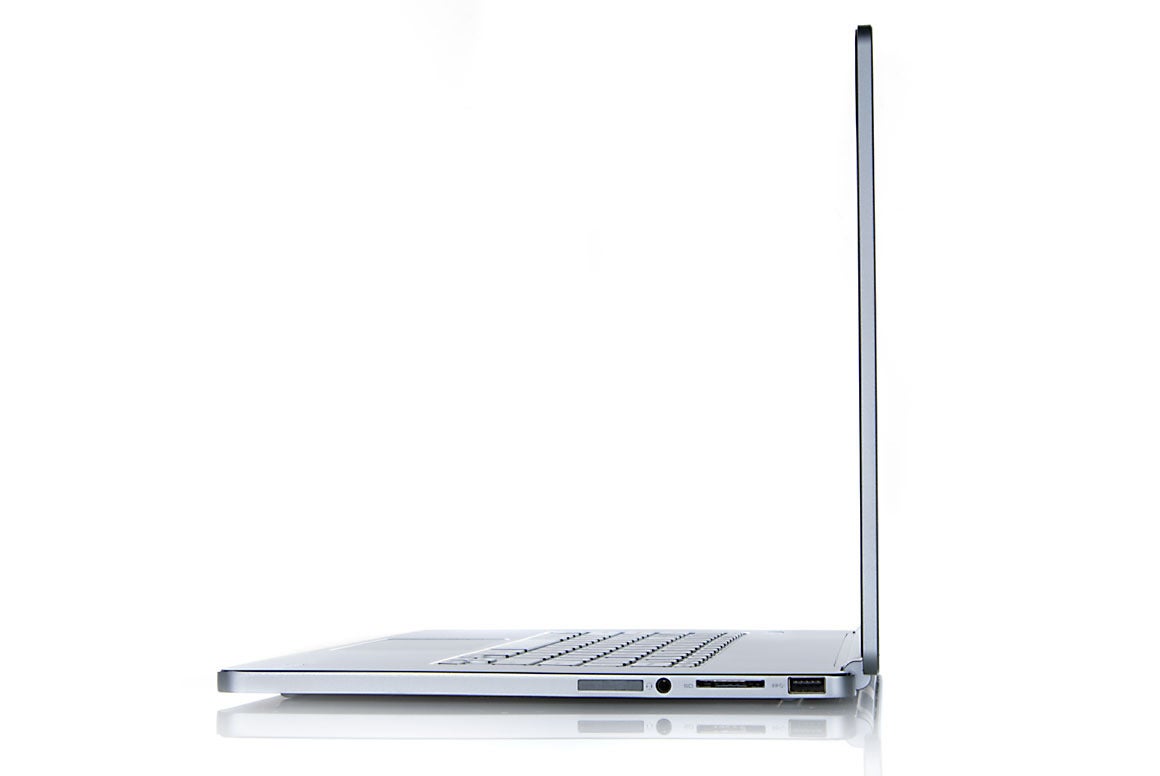
Dell's Inspiron 14 7000 series cuts a super-thin profile despite its reliance on a mechanical hard drive.
Apart from the absence of an SSD, this $850 laptop has a number of
good components under the hood, including a fourth-generation Intel Core
i5-4200U processor and 6GB of DDR3/1600 memory. But its 500GB
mechanical hard drive spins its platters at only 5400 rpm, and its Intel
Dual Band Wireless-N 7260 Wi-Fi adapter can connect only to 802.11n
networks at a maximum physical link rate of 300 mbps. You’ll need a USB adapter if you want to network at 802.11ac speeds.
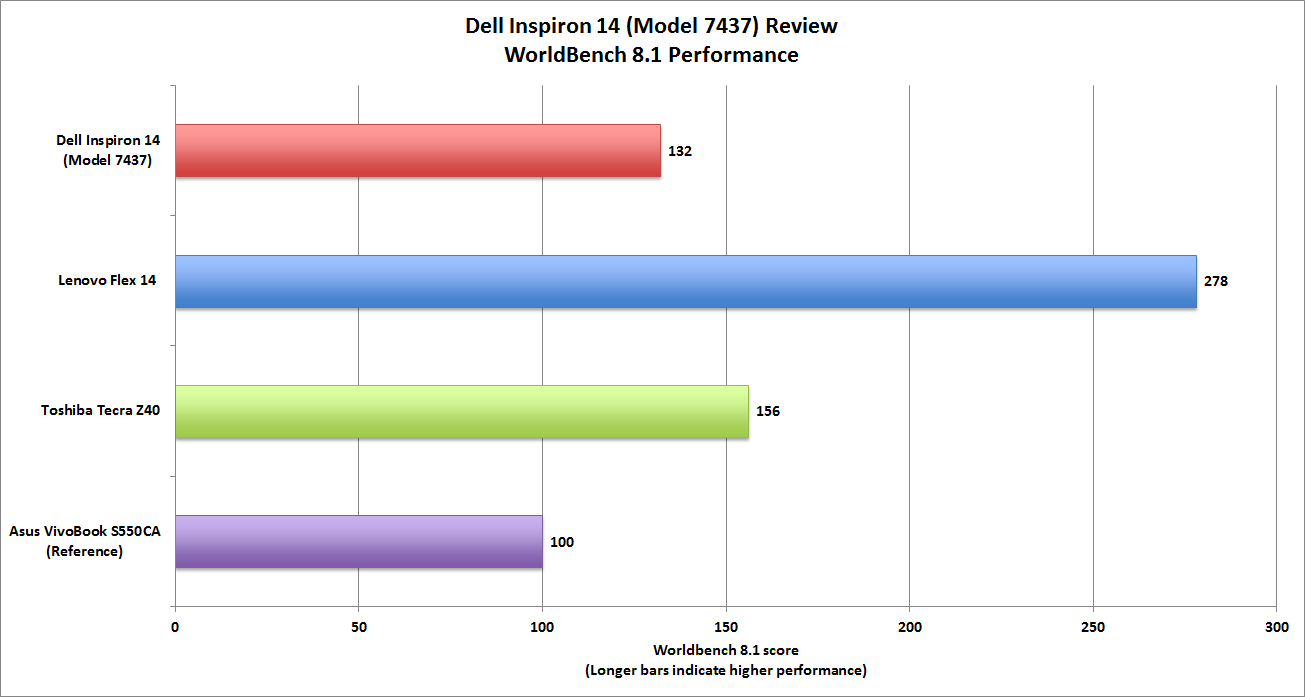
The Inspiron 14 produced a generally unimpressive Worldbench 8.1
score of 132. That renders Dell’s machine 32 percent faster than the
Asus VivoBook S550CA that we’ve been using as a reference point, but
leaves it far behind the consumer-oriented Lenovo Flex 14 (which has an
SSD) and slightly behind the business-oriented Toshiba Tecra Z40 (which
has a 7200 rpm mechanical drive).
There's no escaping the benchmark hit that a mechanical hard drive causes.
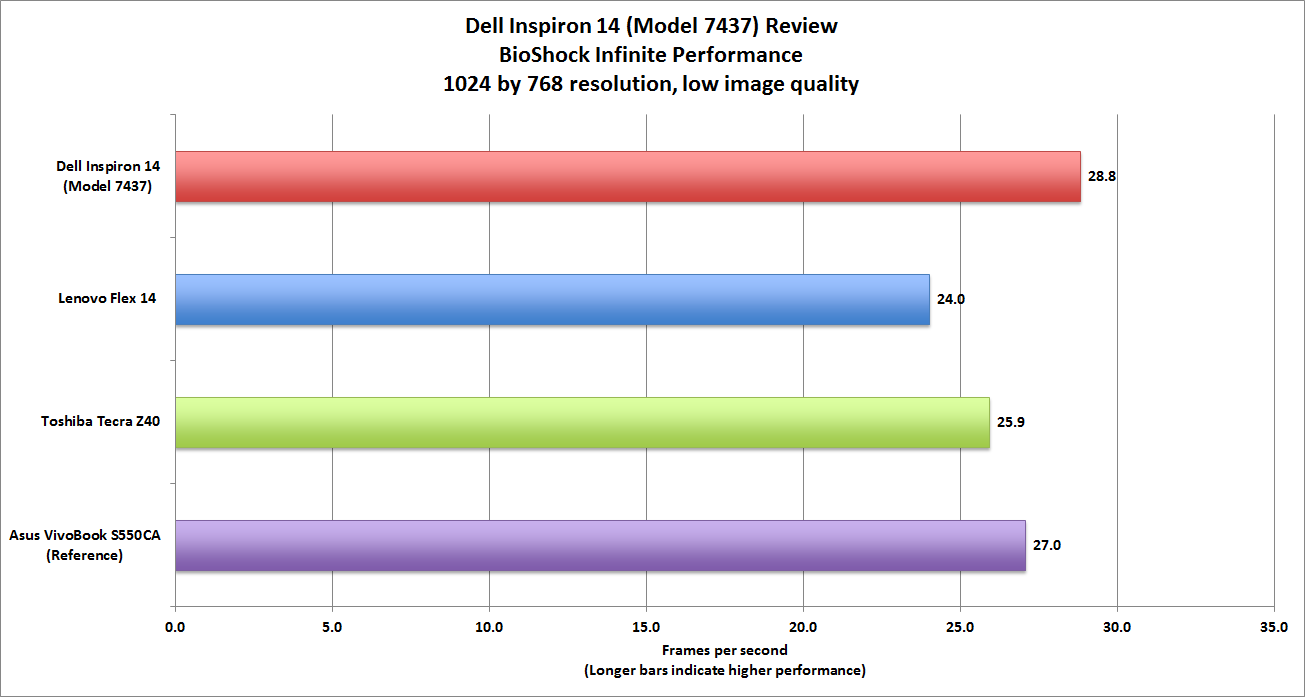
Looking at gaming performance—specifically, BioShock Infinite at
resolution of 1024 by 768 with low visual quality—the Inspiron 14
slightly outperformed the Lenovo and the Toshiba, even though all three
machines rely on the same integrated graphics processor (Intel HD
Graphics 4400). It’s no gaming powerhouse, but it’s fine for
less-demanding games like World of Warcraft.
The Inspiron’s 14-inch touchscreen is bright, beautiful, and clear,
with excellent color accuracy, deep blacks, and crisp text and images.
HD video looks very good on the Inspiron’s display, too. I noticed just a
few artifacts in high-motion scenes. The touchscreen is smoothly
responsive to multi-touch gestures, and the edge-to-edge glass allows
for Windows 8 gestures to be performed quickly and easily.
The Inspiron 14 doesn’t have the most powerful speakers, but they
sound better than most laptop speakers. They’re mounted on either side
of the chassis, and they deliver just the right mix of bass and treble.
Gaming performance is fairly typical for a laptop with a fourth-generation Intel Core processor and integrated graphics.
I did notice some anomalies in the Inspiron 14’s otherwise excellent
industrial design. The chassis is much wider than necessary to
accommodate a 14-inch display, with an unusually wide bezel at the sides
and bottom of the display and more than an inch of dead space on the
left and right sides of the keyboard. The island-style keyboard sits
dead center in the chassis, a placement that renders the wrist rest
cramped and uncomfortable. And why are the top row of function keys so
tiny—they’re less than 0.25 inches tall—when there’s two inches of
unoccupied space right above them?
The keyboard deck itself is flimsy—aggressive keystrokes cause the
whole thing to sink slightly—and the flat keys provide very little
tactile feedback. The aforementioned backlight provides very uneven
illumination, giving the keyboard a marbled look. The touchpad, on the
other hand, is quite good, providing swift, accurate movements and
mostly smooth multi-touch gestures.
If Lenovo’s spendy ThinkPad X1 Carbon is the laptop every corporate
drone craves, Lenovo’s thrifty ThinkPad X240 is the laptop their
employer is more apt to spring for (assuming, of course, that the
company’s IT department has standardized on Lenovo and not Dell, HP,
Toshiba, or some other commercial laptop builder).
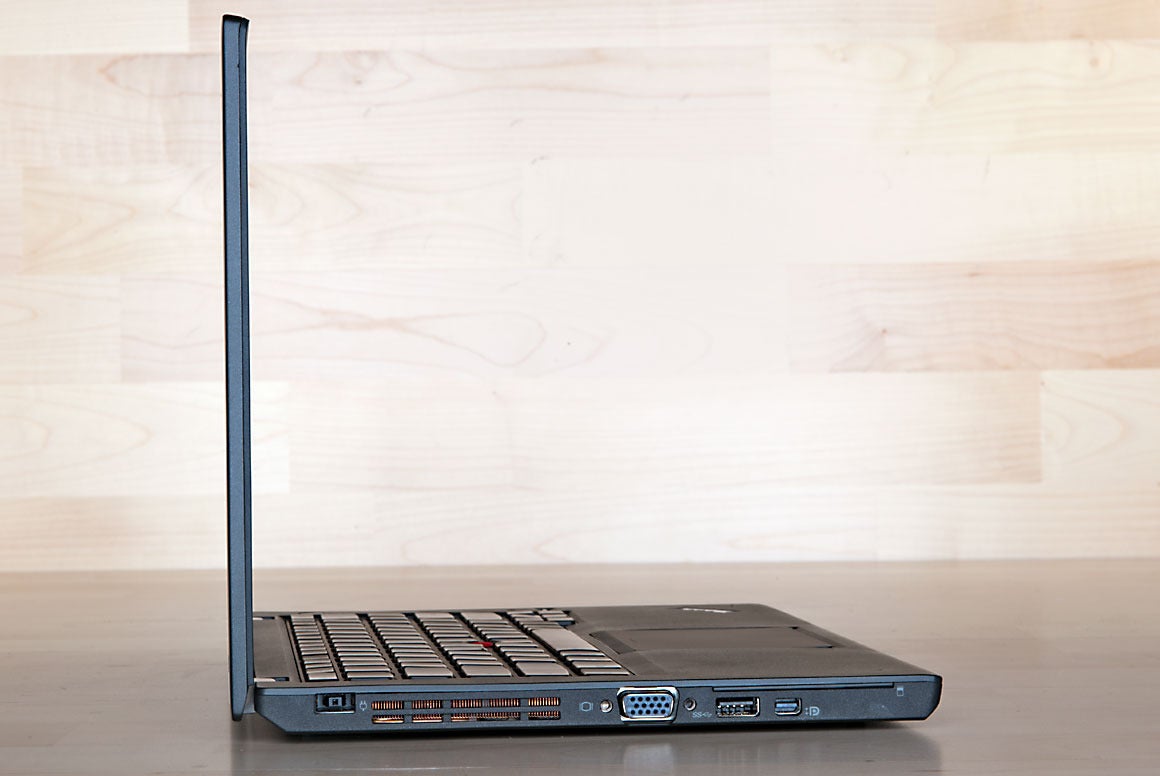
You might think the ThinkPad X240 is too thick and too heavy to qualify
for Ultrabook designation, but it’s only 0.79 inches thick and it weighs
just 3 pounds. And there’s a very good reason why the X240 doesn’t
taper to a knife edge like the X1 Carbon does: The X240 is outfitted
with two batteries and a battery bridge that enables you to swap a
depleted battery for one that’s fully charged without turning the machine off. That’s slick.
ROBERT CARDIN
Lenovo's ThinkPad X240 looks thick only next to wafer-thin notebooks
like Lenovo's ThinkPad X1 Carbon. This machine is only 0.79 inches thick
and it weighs three pounds.
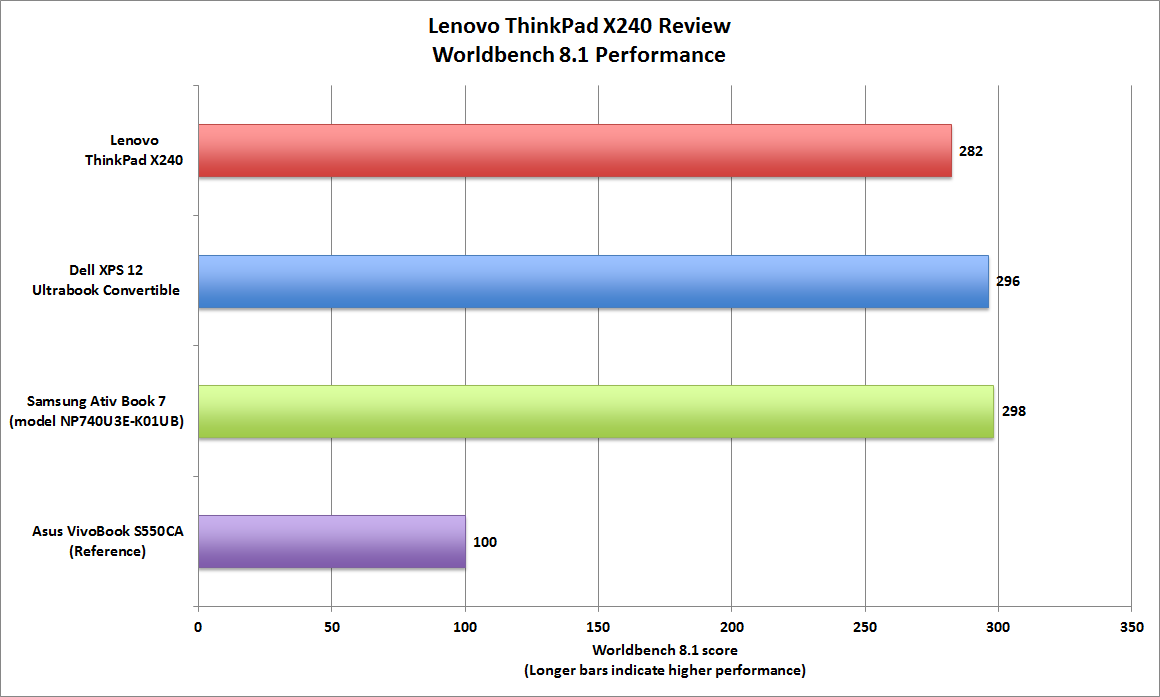
PCWorld’s Worldbench suite rewards laptops equipped with SSDs—the
configuration reviewed here includes a 256GB model—but the X240’s score
of 282 leaves it slightly behind Dell’s XPS 12 Ultrabook Convertible
(which has the same dual-core CPU) and Samsung’s Ativ Book 7 (which is
powered by a third-generation Core i5-3337U, another dual core). This is
a little surprising considering that the ThinkPad had twice as much
DDR3/1600 memory: 8GB versus 4GB in the Dell and the Samsung.
Worldbench favors machines with SSDs, and the ThinkPad X240 we reviewed has a 256GB model.
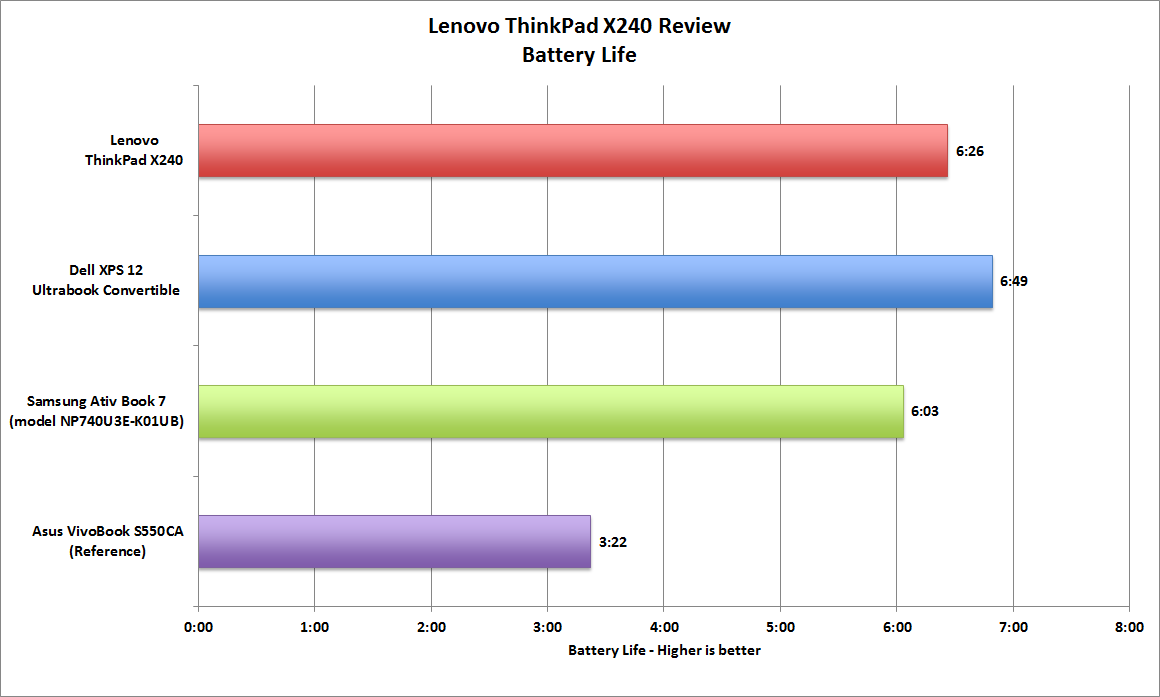
The x240 packs a fourth-generation Intel Core processor, so you can
expect strong battery life. Our eval unit came with a Core i5-4200U, but
you can make other choices when you place your order. The three-cell
battery in this one ran for 6 hours and 26 minutes, which is typical of
Haswell-powered notebooks, but Lenovo also offers an optional six-cell
battery that should run much longer than the average workday. That large
battery will add weight and about a half-inch of thickness to the
X240—it will protrude from the bottom rear of the laptop.
If you don't mind toting an extra battery, the ThinkPad X240's hot-swap feature will keep you productive for many, many hours.
The X240 has a number of I/O ports you won’t find on the 2013 X1 Carbon,
including a gigabit ethernet port, a smart card reader, 34mm Express
card socket, a VGA port, an always-on USB 2.0 port, and a docking port
on its bottom. Like the X1 Carbon, it also has two USB 3.0 ports, a mini
DisplayPort, an SD card reader, and a fingerprint reader (an included
option our eval unit).
You can also order your machine with several different 12.5-inch
displays, but I recommend staying away from the 1366-by-768 touchscreen I
evaluated. It’s a bright IPS panel that’s very responsive to touch, but
it looked fuzzy and grainy to my eyes. Place it next to a laptop with a
1920-by-1080 display and you’ll experience severe pixel envy. Ordering
one for this machine will add $330 to its $1555 price tag.
I was also a little disappointed in the X240’s backlit, island-style
keyboard. I've used a number of Lenovo keyboards, and this one just
doesn't feel as nice (for lack of a better term). The spacebar has an
oddly stiff feel that made me miss-tap it frequently, and the key
spacing didn't feel as comfortable. It's not a terrible keyboard, but
it's not as outstanding as I've come to expect from a ThinkPad.
ROBERT CARDIN
The 1366 by 768 display left me wanting more definition.
TrackPoint fans will still find the nubby red dot in the center of the
keyboard, but the dedicated buttons are gone. You'll need to depress the
whole glass trackpad and hope your finger is in the right zone (there
are five) to get the type of click you want. I found middle clicks
especially hard to hit accurately. Speaking of the one-giant-button
trackpad, it depresses easily and quietly. Its generous size enables you
to make the most of Windows 8’s multitouch gestures, but I ran into a
few frustrating moments when it registered two-finger scrolling when I
only had one finger down. Apart from that, I found it to be smooth and
responsive for navigation.
If you’re looking for a workhorse laptop with incredible battery life,
Lenovo’s X240 is a solid choice. Its graphite-black chassis won’t turn
heads, but it will help you travel light and get a lot of work done.
Just think hard before you order one with the 1366 by 768 touchscreen.
This machine deserves better, and so do you.
HTC fans you'd better hold onto your hats because the
company's freshest flagship phone is right around the corner. Planned to
follow its predecessor, the lovely HTC One, the HTC One 2 (at least that's what we're calling it for now) no doubt will be faster, better skilled, and more impressive.
We've been keeping close tabs on all the tasty tidbits churned
out by the smartphone rumor mill over the last few months. As a result
we have a pretty good idea what HTC has up its sleeve. Sure, many of the
hard details regarding the One 2 remain fuzzy. Even so, the outline of
the device's profile, slick new features, and powerful components are
slowly shifting into focus. Stay tuned as we'll update this post to
reflect each new development as it happens until HTC ultimately launches
its latest halo handset. What we think we know
Codenamed the M8, but possibly officially called the HTC One 2 or
perhaps One+, the next HTC superphone could be saddled with an awkward
name. Despite a potentially clumsy moniker, though, word on the street
points to a muscular smartphone boasting beefed up hardware.
Specifically the HTC One 2 will likely leverage the computing power of a
Snapdragon 800 or even a cutting-edge Snapdragon 805 processor. This
would be a welcome upgrade to the original HTC One's slower Snapdragon
600 chip the phone shipped with.
Apparently HTC will stretch the One 2's screen, too, expanding
its panel to 5 inches up from the first HTC One's 4.7-inch display.
Another key enhancement is a full 3GB allotment of RAM, hopefully to
match at least 32GB of internal storage (what the One has now).
But wait, that's not all. Images reported to be leaked photos
depict an HTC device wielding twin camera lenses. It's still not clear
what the purpose of a dual-image capture system like this could be. We
doubt it would be for giving the One 2 any 3D picture-taking abilities.
We believe HTC abandoned that gimmick with its questionable Evo 3D. Chances are strong that the phone will run Android 4.4 KitKat, not to mention the handset-maker's latest version of its Sense user interface.
When will we get it
So far HTC has kept quiet on the topic of any successor to the HTC One.
Since the company unveiled the One this week last year, and we're just
three weeks from the start of Mobile World Congress, we're due for a
replacement any day now. If the rumored handset doesn't debut at MWC
2014 in Barcelona, then we'll definitely see what HTC was in the works
soon after. After all spring is smartphone season with many big names in
the business traditionally choosing to announce fresh devices at MWC. February 4, 2014 HTC One successor may sport two rear cameras
If images from Twitter tipster HTCFamily.ru turn out to be legit, the
next HTC handset powerhouse will pack a two cameras or at least two
lenses. The phone pictures also looks very similar to the HTC One Max
and One Mini complete with metal chassis and white stripes for accents.
January 17, 2014 A bigger, more powerful HTC One due in late March 2014
According to a Bloomberg report the HTC One follow-up will pack lots of
high-octane parts. These include a Snapdragon 800 or 805 processor, 3GB
of RAM, not to mention a camera with superior focus and depth of field.
Also said to be in the mix is Android 4.4 KitKat and a new HTC Sense UI
skin layered on top. November 12, 2013 HTC One 2 codenamed M8 and set for spring 2014
Professional device leaker @evleaks reasons that the next HTC superphone
will arrive by the end of Q1 of 2014. The rumor monger also expects the
gadget will hit all four major US carriers.
Interesting display tech and excellent battery life by Matthew Miller
Summary :LG launched their curved display phablet, but the premium price isn't
justifiable given the low display resolution, mediocre camera
performance, and odd button placement.
AT&T LG G Flex retail box
LG first released the G Flex in Asia and then at CES they announced US availability. I’ve been testing out the AT&T model for over a week and am personally not convinced its a device that should be launching so broadly.
Many tech reviewers hate US carrier exclusives and want flagship
devices released on all major carriers. In this case, LG satisfied that
desire by releasing the LG G Flex on AT&T, Sprint, and T-Mobile.
Unfortunately, it is really a tech demonstration smartphone and probably
should have just launched on one carrier to test the waters.
Hardware
The primary focus and innovation of the LG G Flex is the curved
display and that feature is evident as soon as you pull the device from
the retail package. The LG G Flex is a huge phone, similar in size to
the HTC One Max and Nokia Lumia 1520. I found both of those phones too
large and find the same thing with the G Flex. If you are reading this
review, then you might be looking at these monster smartphones so the
size may not be a problem for you.
The six inch display is curved in a concave manner along its length.
LG states it is designed this way to better fit your hand and face,
while also fitting better into your rear pants pocket. A phone this size
looks rather ridiculous held up to your face so whether it fits the
curve or not is really kind of silly. Also, while the phone may fit into
my back pocket and match the curvature of my butt, it also sticks out
of the top of my pocket an inch or so.
The colors on the display are vibrant and look great, but you can
definitely see the lower resolution on a display this size and in 2014
there is no way I could go back to such a display when there are
existing better alternatives with likely even better displays coming
soon. Movies and photos do look good on the curved display, but I
couldn’t see any real advantage for most applications.
When I heard about the G Flex, I expected to be able to pick it up
and actually flex the device a bit in my hand. It’s not designed like
that, you have to place it down on a table and press firmly to get it to
bend at all. It is really just a novelty that you shouldn’t do too
often and I think the real benefit is that it is made from a special
plastic and should be more durable if you happen to drop your phone a
lot.
A front facing camera is located above the display on the left side.
There are no hardware buttons, just three (or four) software buttons on
the bottom of the display.
There are no buttons on the top or sides of the LG F Flex with just
the SIM card slot along the upper left side. There is a microUSB port
centered on the bottom with the headphone jack on the right side.
Unfortunately, LG decided to continue using the funky back button
design with the power button and two volume buttons centered under the
camera. I never warmed up to this on the LG G2
and found them even more difficult to use with the larger G Flex. The
center power button does light up as an indicator light, but most of the
time I had the back facing down so it didn’t seem that useful to me.
Capturing screenshots for this image gallery, I know most users don’t
care about screenshots, was an exercise in frustration as I had to try
to press the power button and down volume with precise timing. The
volume was changed 80 percent of the time and I almost decided to test
out the display durability with a heavy wall impact.
There is a 13 megapixel camera on the back, but there is no optical
image stabilization. I think that is important on these larger devices
and was disappointed that it wasn’t included on such a large and
expensive device. Photos turned out OK, but the G Flex is not going to
replace a point and shoot.
The HTC One made me a huge fan of the IR remote on these devices and
the G Flex includes one as well. It was moved from the top to the back
though, on the opposite side of the camera from the flash. I think this
is still an acceptable location and the Quick Remote software works
well.
There is a speaker on the lower right side of the back and the sound
is quite good. The back has some kind of ‘self-healing’ covering on it
that you can see when you look around the ports and openings. It is
designed to ‘heal’ when you scratch it lightly, but it is also a heck of
a fingerprint magnet.
Software
I was disappointed to see that KitKat (Android 4.4) was not included
on the device. All 2014 flagship phones should be launching with this
version of the software rather than stating that it will come in a
future update. We all know how long it takes US wireless carriers to
review and approve these updates so it should have came preloaded on the
G Flex.
Like the G2, LG includes their Samsung-like heavy customization user
interface. There are loaded status bars, four extensive (and levels
deep) settings pages, and novelty functions throughout the device. Since
this is an AT&T model you will also find it loaded with several
bloatware apps and services.
I like the Nokia copied Knock feature that lets you double tap to
wake the device and the lock screen that changes with the time of day is
pretty slick. Dual Window can also be useful on a large display, but I
don’t like QSlide or Slide Aside. If you are a person who likes to
customize their device, then the LG G2 and G Flex are definitely devices
to consider as you can setup the device nearly to your heart’s desire.
Usage and experiences
When I test out devices I try to use them for at least a week as my
primary device. I really could not do that with the G Flex since it is
just too large to serve that role for me so I carried it as a secondary
device and used it as much as I could.
I never found the need to flex the G Flex, except for testing and to
show it off. I watched a short movie on it and enjoyed the experience
with the vibrant colors. Large displays are definitely enjoyable when
you are browsing the internet or using social networks where you can
view a lot of content at one time.
The battery seemed to last forever and easily went a day and a half,
even with fairly heavy usage. Calls sounded great, audio playback was
good, the camera was just OK, and the device responded quickly. The
display resolution disappointed me and I have been spoiled by ‘lighter’
Android devices like the Nexus 5 and Moto X. I even find the HTC Sense
UI less overwhelming and more enjoyable.
Pros and Cons
To summarize my experiences with the LG G Flex, here are my pros and cons. Pros
Unique curved display with durable design materials
Very long battery life
Vivid colors in the display
Cons
Jelly Bean version of Android
720p display resolution
Fair camera with no optical image stabilization
Expensive
Odd button placement on the back
Overwhelming LG utilities and AT&T non-removable apps
Pricing and availability
You can pick up the LG G Flex on AT&T for $299.99 with a contract or $694.99 with no annual contract. Sprint prices the LG G Flex at the same $299.99
with a contract and a $649.99 regular price. T-Mobile doesn’t have
subsidized pricing so the full price of the LG G Flex with them is $672. Like all T-Mobile phones you can pay this full price via interest-free installments.
I have seen unlocked versions of the G Flex priced in the $730 to $990 price range as well.
The competition
Samsung kicked off the modern phablet revolution with the Galaxy Note line and the Note 3
is a fantastic device that I would recommend over the LG G Flex. The
Note 3 has a smaller form factor, higher resolution display, removable
battery and microSD card slot, and the S Pen (which justifies the large
size).
Sony has their large Xperia Z line and the waterproof function is cool. HTC has the lame HTC One Max that I do not recommend. Nokia has the large screen Lumia 1520, but here in the US AT&T removed a few good parts and I would not pick that one up either.
13 megapixel rear camera and 2.1 megapixel front facing camera
Bluetooth 4.0 BLE, 802.11 a/b/g/n/ac WiFi, and Miracast
3500 mAh non-removable battery (3400 for T-Mobile)
Dimensions of 160.5 x 81.6 x 7.9 mm and 177 grams
Conclusion
LG has greatly improved their smartphone devices and I look forward
to what else they launch in 2014. The G Flex seems to be a technology
test device with the unique display design and back material, but there
are outdated specs (low resolution display, older camera technology, and
an older OS on a device that is priced higher than most others on the
market.
I could understand if the G Flex was launched as an unlocked device,
similar to what Sony has been doing for most of their Xperia line, or on
a single carrier like AT&T or T-Mobile to show off their curved
display. However, it is definitely not worth launching on three major
carriers and I doubt it will sell to many consumers as we get into the
new devices of 2014 launching in the next few months.
If I was looking for a large screen smartphone, the Note 3 is the
only device I would consider at this time. I would like to see LG bring
their display technology to the next smaller device, the G3, and also
move back to having side-mounted power and volume buttons

 Lenovo
 Asus
Asus ROBERT CARDIN
 ROBERT CARDIN
 ROBERT CARDIN
 Lenovo
 ROBERT CARDIN
 Sony
Sony ROBERT CARDIN
 Lenovo
 Asus
Asus ROBERT CARDIN
 ROBERT CARDIN
 ROBERT CARDIN
 Lenovo
 ROBERT CARDIN
 Sony
Sony ROBERT CARDIN